
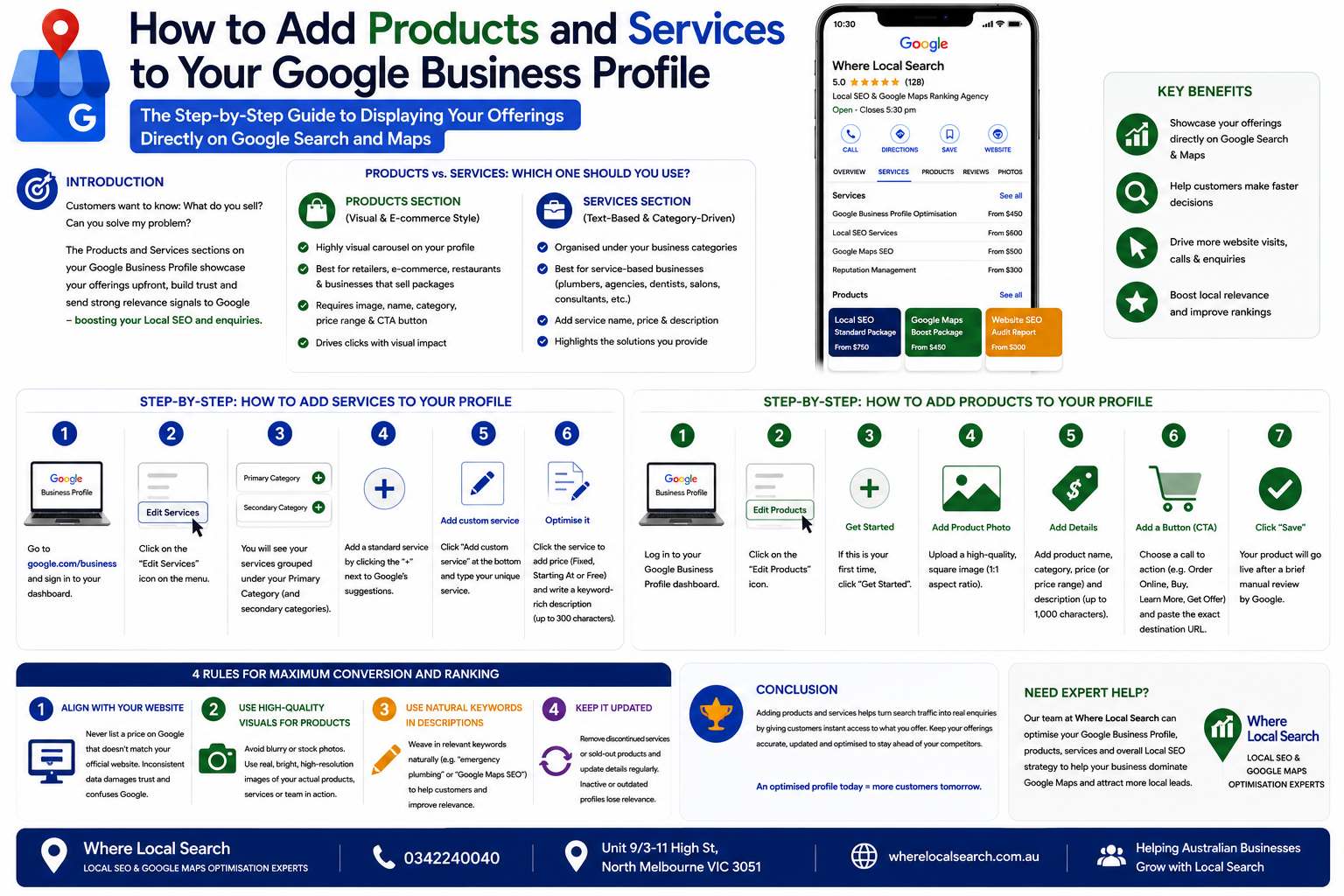
The Step-by-Step Guide to Displaying Your Offerings Directly on Google Search and Maps
When potential customers find your business online, they want to know two things immediately: What do you sell? and Can you solve my problem? While a good business description sets the stage, Google Business Profile (GBP) offers two dedicated, highly powerful sections to answer these questions directly: Products and Services.
Adding your offerings directly to your profile turns your Google listing into a fully functional digital storefront. It allows users to browse what you offer without even clicking through to your website, significantly shortening their buying journey. Furthermore, using these sections properly sends rich keyword signals to Google, directly boosting your Local SEO and relevance.
In this guide, we will break down the structural differences between the Products and Services sections and show you exactly how to add and optimise them step-by-step.
Products vs. Services: Which One Should You Use?
Google treats these two sections differently based on your business model. Most businesses can—and should—use both if applicable.
The Products Section (Visual & E-commerce Style)
The Products section is highly visual and prominent. It appears as a dynamic carousel on your mobile and desktop profile layout.
- Best for: Retailers, e-commerce stores, restaurants, and service businesses that sell tangible packages (e.g., fixed-price repair packages).
- Key features: Requires an image, a product name, a category, and allows you to add a price range and a direct "Call to Action" (CTA) button linking to your website.
The Services Section (Text-Based & Category-Driven)
The Services section is structured around your chosen business categories. It is cleaner and text-based, designed to outline the specific jobs or solutions you provide.
- Best for: Service-based businesses like plumbers, electricians, dentists, beauty salons, and digital marketing agencies.
- Key features: Organised under your Primary and Secondary categories, allowing you to add individual service names, pricing details, and descriptions.
Step-by-Step: How to Add Services to Your Profile
1. Go to google.com/business and sign in to your dashboard.
2. Click on the "Edit Services" icon on the menu.
3. You will see your services grouped under your Primary Category (and any secondary categories you selected).
4. To add a standard service recommended by Google, simply click the "+" icon next to their suggestions.
5. To add a specific service unique to your business, click "Add custom service" at the bottom of the category block and type it in.
6. Optimise it: Click on the newly added service to add a price (Fixed, Starting At, or Free) and write a short, keyword-rich service description (up to 300 characters) outlining exactly what the service entails.
Step-by-Step: How to Add Products to Your Profile
1. Log in to your Google Business Profile dashboard.
2. Click on the "Edit Products" icon.
3. If this is your first time, click "Get Started."
4. Fill in the required product details:
- Product Photo: Upload a high-quality, square image (1:1 aspect ratio) of the item or package.
- Product Name: Keep it clear and specific (e.g., "Premium Matte Wedding Dress" or "Local SEO Standard Package").
- Product Category: Create a new category or choose an existing one to keep your shop organised.
- Price: (Optional) Enter a fixed price or a price range.
- Product Description: Write a compelling description outlining features and benefits (up to 1,000 characters).
- Add a Button: Choose a Call to Action button (e.g., Order Online, Buy, Learn More, or Get Offer) and paste the exact destination URL from your website.
5. Click "Save." The product will go live after a brief manual review by Google.
4 Rules for Maximum Conversion and Ranking
To ensure your products and services drive the highest amount of local enquiries, follow these industry best practices:
Never list a product or service price on Google that doesn't match the pricing on your official website. Inconsistent data damages customer trust and confuses Google's algorithm.
Avoid blurry or low-quality stock photos. Use real, bright, high-resolution photos of your actual inventory or team in action to drive higher engagement.
When writing service descriptions, naturally weave in terms your customers search for (e.g., "emergency plumbing" or "Google Maps SEO").
If you discontinue a service or sell out of a core product category, remove or update it immediately. Inactive or outdated profiles gradually lose their search relevance.
Conclusion
Adding products and services to your Google Business Profile is one of the fastest ways to transform passive search traffic into active customer enquiries. By giving users immediate access to what you offer, right at the moment they are searching, you gain a massive competitive advantage over incomplete listings.
However, keeping up with regular product updates, service modifications, and overarching Local SEO adjustments requires constant maintenance.
If you want to ensure your digital storefront is perfectly set up to dominate Google Maps rankings and drive consistent local leads across Australia, the team at Where Local Search is here to manage it for you. As experts in Google Maps SEO and local digital marketing, we tailor your profile assets to ensure your business stands out and grows sustainably long-term.