
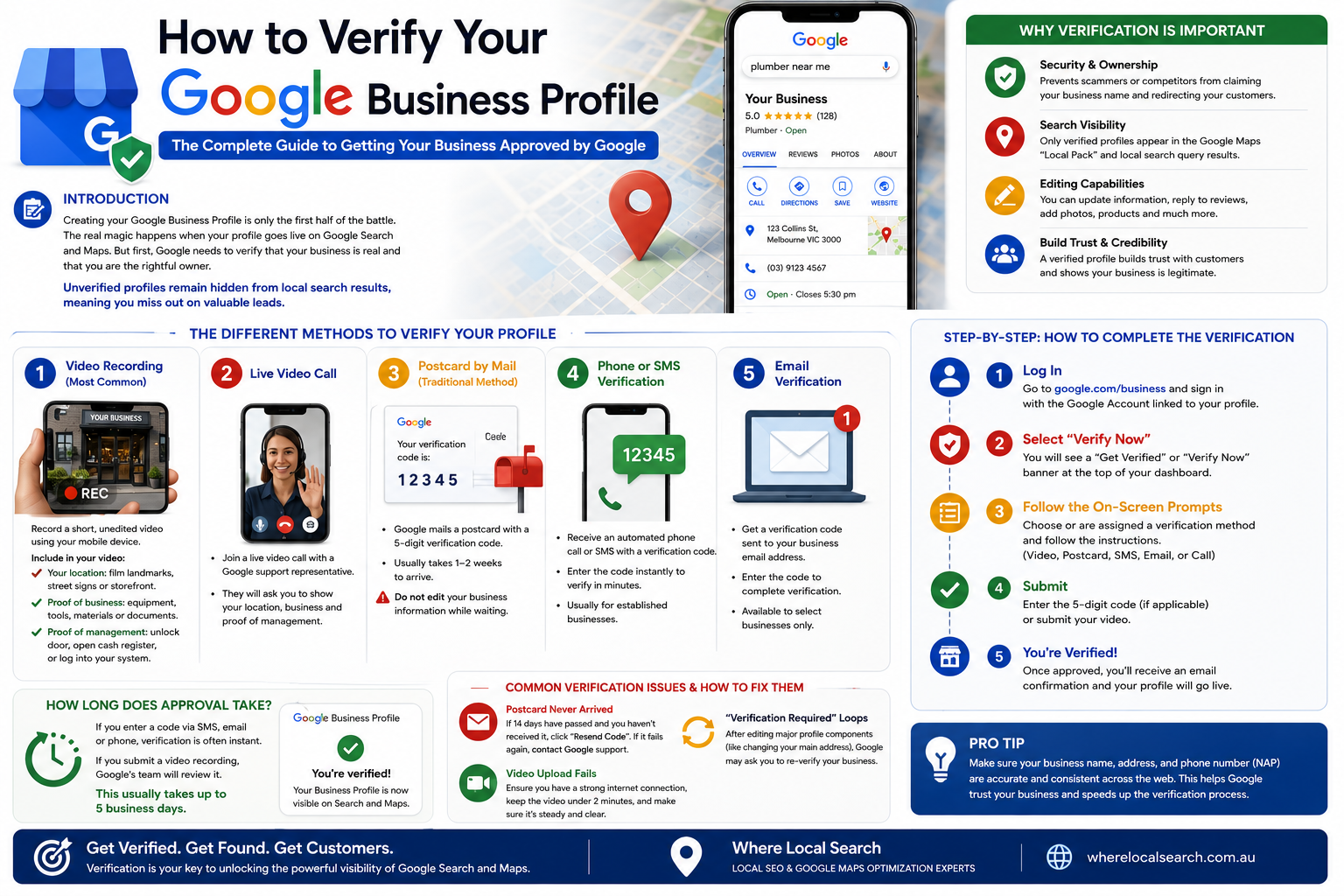
The Complete Guide to Getting Your Business Approved by Google
Creating your Google Business Profile is only the first half of the battle. The real magic happens when your profile goes live, allowing local customers to find you on Google Search and Google Maps. However, Google will not display your profile to the public until it is officially verified.
Verification is Google’s way of ensuring that your business is legitimate, the address is real, and you are the rightful owner or manager. Unverified profiles remain hidden from local search results, meaning you miss out on valuable leads.
In this guide, we will break down the different verification methods Google offers, how to complete the process step-by-step, and what to do if you run into issues.
Why Is Verification Important?
Before diving into the "how," it is essential to understand why Google requires this step:
Prevents scammers or competitors from claiming your business name and redirecting your customers.
Only verified profiles appear in the Google Maps "Local Pack" and local search query results.
You cannot update important information, reply to customer reviews, or add products until verification is complete.
The Different Methods to Verify Your Profile
Google decides which verification methods are available to you based on your business type, industry, region, and how much trusted data they already have about your business. Here are the primary methods you might encounter:
1. Video Recording (The Most Common Modern Method)
Google frequently requests a short video capture to verify service-based and local retail businesses. You will be asked to record a continuous, unedited video using your mobile device.
What to include:- Your Location: Film outside landmarks, street signs, or your business storefront to prove your physical location.
- Proof of Business: Film your business equipment, branded tools, marketing materials, or official business documents (like a registration certificate).
- Proof of Management: Film yourself unlocking the front door, opening the cash register, or logging into your operating system to show you have authority.
2. Live Video Call
Similar to video recording, Google might offer an option to jump on a brief live video chat with a Google customer support representative to show the same details listed above.
3. Postcard by Mail (The Traditional Method)
If you have a physical storefront, Google may send a physical postcard with a unique 5-digit verification code to your exact business address. It usually takes 1 to 2 weeks to arrive.
⚠️ Crucial Rule: Do not edit your business name, address, or category while waiting for the postcard, as this will cancel the request and require you to start over.
4. Phone or SMS Verification
This is the fastest method, but it is typically reserved for established businesses that Google already recognises. You choose to receive an automated phone call or a text message with a verification code and enter it instantly into your dashboard.
5. Email Verification
Google sends a verification code to a business email address associated with your website domain (e.g., info@yourbusiness.com).
Step-by-Step: How to Complete the Verification
Once you choose or are assigned a verification method, here is how you finalize it:
1. Log In: Go to google.com/business and sign in with the Google Account linked to your profile.
2. Select "Verify Now": You will see a prominent "Get Verified" or "Verify Now" banner at the top of your dashboard.
3. Follow On-Screen Prompts: Follow mobile prompts for Video Recording, or enter the exact 5-digit code if you received a Postcard, SMS, or Email.
4. Submit: Click "Submit" or "Verify."
How Long Does Approval Take?
After entering a code, verification is often instant. However, if you submitted a Video Recording, Google’s support team manually reviews it. This review process usually takes up to 5 business days. Once approved, you will receive an email confirmation, and your status will change to "Verified."
Common Verification Issues & How to Fix Them
If 14 days have passed and you haven’t received it, check your mail settings and click "Resend Code." If it fails again, contact Google support to request an alternative method.
Sometimes, after editing major profile components (like changing your main address), Google might ask you to re-verify your business to keep the ecosystem safe.
Make sure you have a strong internet connection, and the video is under 2 minutes long. Keep the camera steady and clear.